· Samir Abid · AI Implementation · 9 min read
How to Create a Simple App with AI in May 2026
How to build a simple app with AI in May 2026 — a step-by-step path from idea to live website using Claude Code or Codex, without losing changes between prompts.
How to Create a Simple App with AI in May 2026
A simple(-ish) path from idea to live app
AI coding (or “Vibe Coding”) is in a useful, slightly awkward place.
It is now good enough to help a non-developer turn a clear idea into a working app. It can write the files, set up the project, run the local server, and explain what it has changed. That was not a normal option for most people a couple of months ago.
But it is not magic. The quality of the result still depends on the shape of the work around it. If the whole app lives in one large HTML file, every change asks the AI to hold too much in its head at once. It can improve one part and disturb another. It can also overwrite something that was working five minutes earlier.
Stepping outside of one file is the practical next step, but it can feel daunting.
This article gives a method you can follow step-by-step as it stands in May 2026.
Why “May 2026”?
The tools are moving quickly. Claude Code, Codex, Cursor, Stitch and the surrounding workflow are changing month to month.
So this post is dated on purpose. It reflects what works right now, in May 2026. If you are reading it much later, check the articles page for any newer versions.
The question is not simply “can AI build an app?” It can, in many cases. The better question is: what does the work need around it so the app remains understandable, changeable and recoverable?
The situation
A lot of people start in the most natural place. They ask an AI tool to make a page. It produces something impressive. The page looks good enough to keep going, and that first result is often genuinely useful.
Then the next request comes in:
Make the dashboard more polished.
Or:
Add a pricing page.
Or:
Change the layout but keep everything else the same.
This is where the limit appears. If everything is in one large file, the AI often has to rewrite more than you intended. It is not being careless in a human sense. It is being asked to make a precise change inside a loose structure.
That structure is fine for a first sketch. Its natural limit appears when you want the thing to keep improving.
The opportunity here is to keep the easy part of AI coding while adding just enough structure around it. You do not need to become a software engineer. You do need the AI to work in a real project, with separate files and save points.
What this makes possible
With the right workflow, you can create a simple app with AI in May 2026 and keep control of the direction.
That does not mean the AI makes every product decision. It means you can move from idea to working prototype without turning every change into a development project. You can see something in the browser, react to it, ask for a change, and preserve the parts that already work.
A useful way to think about this is:
- You provide judgement. What should exist, who it is for, what good looks like.
- The AI provides execution. Files, code, setup, local preview, small edits.
- Git provides memory. Working versions you can return to when a change goes the wrong way.
The method below is deliberately plain. It is enough for a prototype, an internal tool, a dashboard mock-up, a landing page, or the first version of a small app.
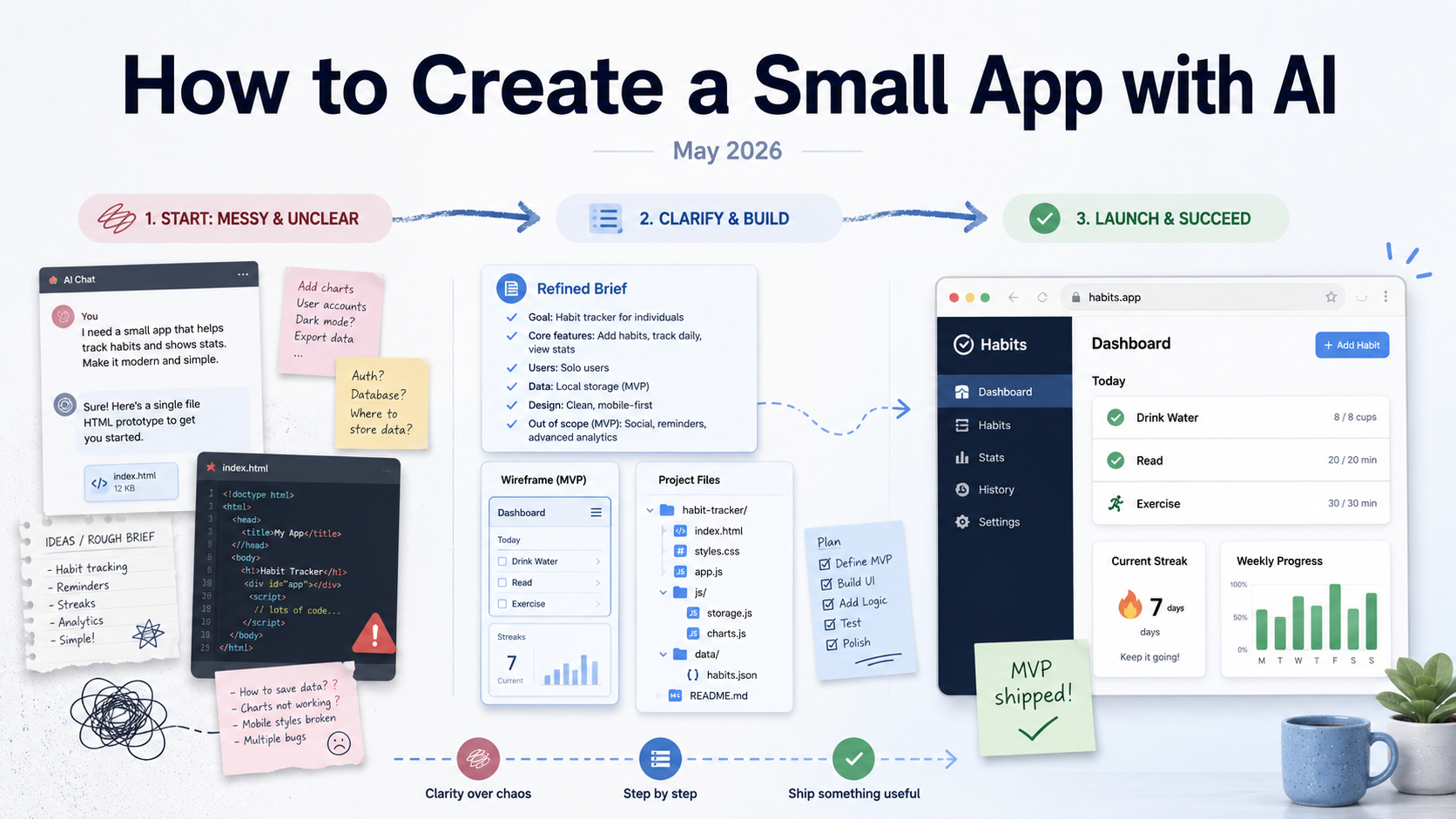
1. Start with the shape of the app
Before asking for code, describe the thing clearly.
The aim is not to produce a perfect specification. The aim is to give the AI enough context that it is not inventing the product from a single sentence.
Open an AI chat assistant and explain:
- who the app is for
- what problem it helps with
- what screens it needs
- what each screen should show
- what actions a user should be able to take
- what should be left out of version one
Then ask it to interview you a few questions at a time and turn the conversation into a front-end brief.
The useful test is simple. Read the brief back. If it sounds like the thing you meant, you are ready to design. If it sounds generic, keep shaping it.
This matters because AI coding tools are much better when the target is specific. Vague input tends to produce vague products.
2. Make the design visible
Once the brief is in good shape, use a design tool to make the direction visible.
Google Stitch is a good option at the moment. v0 and Lovable can also work, depending on what you are trying to make.
The design tool should give you two useful things:
- example screens
- a small design system
The design system matters more than it sounds. It gives the app a palette, typography, spacing, buttons, cards and common patterns. Without that, every new screen can drift into a new visual style.
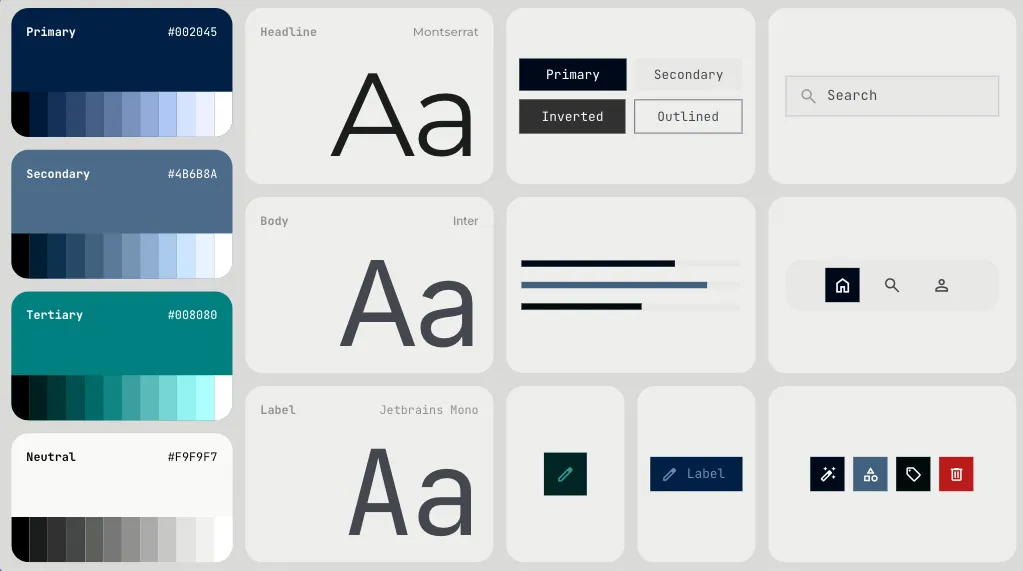
This is the kind of thing Stitch can produce: palette, typography, sample components and example pages. The value is not that it is final. The value is that it gives the AI coder something specific to follow.
Export the pages as HTML when you are happy enough with the direction. Happy enough is the right bar here. You can refine later.
3. Hand the files to an AI coder
This is where the work changes from “make me a page” to “help me build a small project”.
Put the exported files in a folder on your computer. Open that folder in VS Code or a terminal. Then use an AI coding tool such as Claude Code or OpenAI Codex.
Give it a clear first instruction:
Turn these exported design files into a working app I can preview locally. You set up the file structure and write the code. When it is ready, run it and tell me the local address to open.
The important part is that the AI owns the technical setup. It should decide the file structure, install what is needed, and start the app locally.
Your job is to open the local address it gives you, usually something like http://localhost:3000, and look at the result.
This creates a better loop. You are no longer judging code. You are judging the app in the browser.
4. Add save points before you start changing things
Once there is a working version, add Git.
Git is not only for professional software teams. In this workflow, it is a safety net. It means you can try changes without treating every prompt as a point of no return.
Ask the AI coder:
Set up Git in this project and commit this as the first working version.
If you want to see the commands, they are:
git init
git add .
git commit -m "Initial working version"
The rhythm from this point is:
- ask for one change
- check it in the browser
- keep it if it works
- commit it
- move on
That small rhythm is what keeps the work from becoming fragile.
5. Change one thing at a time
AI coders are most useful when the change has edges.
Instead of asking for five improvements at once, ask for one. For example:
Change the dashboard cards so they show revenue, active users and overdue tasks. Keep the existing layout and styling unless a small adjustment is needed.
For changes where you want to protect what already works, add this guardrail:
Make this change only: [describe the change]. First tell me which files you will touch and why. Do not rewrite the whole project or change unrelated sections. After editing, summarise what changed and how I should test it.
This is not about being precious. It is about keeping the cost of a mistake low. If the change works, commit it. If it does not, roll back to the last working version and try again with a narrower instruction.
The practical point is simple: small changes preserve direction. Large vague prompts invite rewrites.
6. Back it up online
When the app has a shape worth keeping, put it on GitHub.
Create a GitHub account and a new private repository. Ask the AI coder to push the project there, or use VS Code’s Source Control panel.
If you want the commands, they look like this:
git branch -M main
git remote add origin https://github.com/YOUR-NAME/YOUR-REPO.git
git push -u origin main
This gives you a copy outside your laptop. It also makes publishing much easier.
7. Publish it
For a simple app or website, Vercel and Netlify are both sensible places to start.
Sign in with GitHub, import the repository, and deploy it. For many simple projects, the default settings are enough.
Then open the live URL and test it as a user would. Click the main paths. Try the empty states. Check it on your phone. If something feels wrong, go back to the local project, make the change, commit it, and publish again.
Publishing matters because a live URL changes the conversation. It is easier to get feedback, show the idea, and decide whether the next version is worth building.
8. Add data later, if the app earns it
Many first versions do not need a database.
A prototype, dashboard mock-up or simple site can often run from sample data in a file. That is not a compromise if the question is still “does this make sense?”
Add a database when the product needs saved information:
- accounts
- logins
- form submissions
- uploaded files
- user-specific records
Supabase is a good next step when that day comes because it covers database, authentication and storage in one place.
The condition is worth naming: add data infrastructure when the app has proved it needs memory. Before that, sample data keeps the build lighter and easier to change.
Prompts worth keeping
For debugging:
This was working before the last change. Find the smallest likely cause and suggest a minimal fix. Do not refactor unrelated code.
For commit messages:
Summarise the change I just made as a short Git commit message in plain English.
For controlled edits:
Make this change only: [describe the change]. Tell me which files you will touch first. Keep unrelated sections unchanged.
Common traps
- Trying to build the finished product in one pass. A useful first version gives you something to react to. That is enough.
- Asking the AI to change too much at once. Smaller changes are easier to review and easier to undo.
- Judging only from the code. Open the browser and use the thing. That is where the real feedback is.
- Working without save points. Commit a version that works before making a risky change.
- Adding a database too early. Use sample data until the app genuinely needs saved records.
What next?
If you want to create a simple app with AI in May 2026, the useful order is:
- describe the app
- make the design visible
- let the AI coder set up a real project
- add Git
- change one thing at a time
- publish when there is something worth showing
If you want the broader map of where AI fits in a business, start with What AI Can Actually Do for Your Business Today.
If you want a hand applying this in your business, you can book a discovery call.
messy file → organised project → recoverable changes → live website